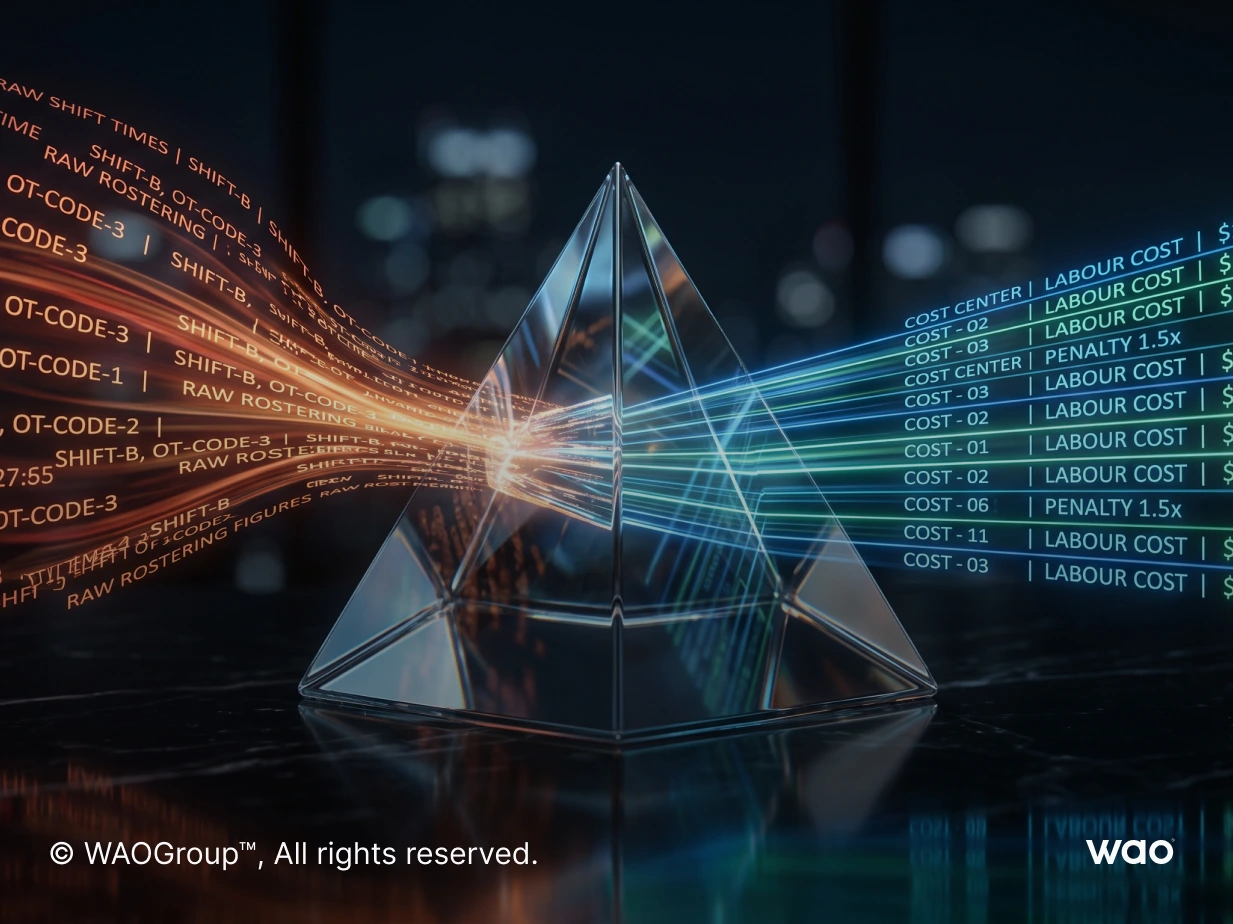
When your sales dashboard shows $50,000 for December but your accountant insists revenue was only $35,000, you’re not looking at an error. You’re looking at two different questions being answered by two different data sources. This is a common challenge faced by companies and departments across various industries, each with unique reporting needs that Odoo reporting and dashboards are designed to address.
This disconnect frustrates business owners and finance teams daily. The good news? Understanding why this happens—and how to design dashboards that answer the right questions—is simpler than you might think. Odoo's integrated reporting tools help drive your business forward by providing actionable insights and streamlining workflows, ensuring every part of your organization has the information it needs to grow efficiently.
In this guide, we’ll walk through exactly how Odoo reporting and dashboards work, why Sales Orders and Invoices produce different numbers, and how to choose the right foundation for your business performance tracking. Whether you’re running retail POS operations or complex B2B projects, you’ll leave with a clear framework for making data-driven decisions. By automating manual reporting tasks, Odoo allows business owners to focus on strategic decision-making and core business activities.
Sales vs Invoice-Based Reporting in Odoo
Let’s answer the core question directly: should your dashboards be based on Sales Orders or Invoices?
The answer depends entirely on what question you’re trying to answer. For example, if you’re considering ERP implementation, correctly setting up Odoo accounting localisation for Australia is a critical first step for compliance and long-term success.
Your existing dashboards are built on confirmed Sales Orders from the Sales module. This means all the data you currently see—monthly totals, margins, salesperson performance, product category breakdowns—reflects when orders were confirmed, not when customers were billed.
Here’s a concrete example from a real Odoo database:
Document | Date | Amount | Appears In |
Sales Order S10226 | 19/12/2025 | $102.60 | December 2025 Sales Report |
Invoice INV-269041 | 01/01/2026 | $102.60 | January 2026 Invoice Report |
The same $102.60 transaction appears in two different months depending on which report you’re viewing. Neither is wrong—they’re answering different questions. |
When to Use Sales Order-Based Reporting
Sales Order reporting is best for commercial performance tracking:
- Quantities Sold and product mix analysis.
- Margin Calculations using cost, discount, and pricing data.
- Salesperson and Team Performance by order confirmation date.
- Product Category Revenue with full dimensional detail.
- Pipeline Conversion from quotation to confirmed order.
This view tells you: “What did we sell this period?”
When to Use Invoice-Based Reporting
Invoice reporting is best for financial performance and compliance:
- Revenue Recognition aligned with accounting standards.
- Accounts Receivable and collection tracking.
- Profit & Loss Reconciliation by billing date.
- Tax Reporting based on invoice dates.
- Cash Flow Forecasting tied to payment terms.
This view tells you: “What did we bill and what are we owed?”
The key insight: Sales-based dashboards show commercial commitments, while Invoice-based dashboards show financial transactions. Most businesses need both, clearly labelled.

Odoo Sales Order–Based Dashboards
The current dashboards in your system are built entirely on confirmed Sales Orders from the Sales module. This approach was chosen because it provides the richest commercial detail with the simplest implementation path.
What These Dashboards Show
Typical Sales Order KPIs displayed include:
- Monthly booked sales by order date (bar chart trending over time).
- Salesperson performance ranked by total order value.
- Product category revenue in stacked bar format.
- Average order value as a KPI card.
- Quotation-to-order conversion rate measures sales effectiveness.
Using our earlier example, Sales Order S10226, confirmed on December 19, 2025, for $102.60, appears in your December 2025 sales dashboard. Even though the invoice won’t be created until January 2026, the commercial commitment is recorded in December.
Margin Calculations
Margin data exists in Sales reports by default, but surfacing it in dashboards requires dashboard configuration or light customisation. The dashboard might include widgets like:
- Total Sales card showing sum of all confirmed order values.
- Margin % card calculating (Revenue - Cost) / Revenue.
- Bar Chart by Month grouping orders by confirmation date.
- Stacked Bar by Product Category showing revenue distribution.
- Top Customers Table listing highest-value accounts.
This structure provides valuable insights for sales managers focused on team performance and product mix optimization.

Invoice-Based Dashboards and Their Challenges
Invoice-based reporting offers an alternative that aligns more closely with accounting and Profit & Loss figures. However, implementing this approach requires additional complexity that should be understood before committing to the change.
Invoice-Based Dashboards: Out-of-the-Box vs P&L Alignment
Odoo provides invoice-based dashboard and reporting capabilities out of the box. However, invoice reports will not always match the Profit & Loss exactly.
This mismatch can occur because:
- Revenue may be recorded through manual journal entries, not invoices.
- POS Bulk Journal Entries.
- Adjustments, accruals, or corrections may exist in accounting.
If you want to fully reconcile invoice dashboards with P&L, additional customisation is required.
How Invoice Dates Affect Reporting
Invoices in the Accounting/Invoicing module are dated when billing occurs. Using our example:
- Invoice INV-269041 has a date of 01/01/2026.
- This date drives revenue recognition in accounting.
- The amount creates an accounts receivable balance.
- January 2026 P&L reflects this revenue.
For financial data reconciliation, invoice-based dashboards are essential. They show what has actually been billed and flows through to statutory reporting.
The Partial Invoicing Challenge
Consider a common scenario: a $1,000 Sales Order where only 50% has been invoiced so far. For businesses managing such transactions, it's important to stay updated on how to navigate Odoo upgrades in Australia & NZ to ensure their ERP systems continue to meet evolving needs.
Reporting View | Amount Shown |
Sales Order Dashboard | $1,000 (full order value) |
Invoice Dashboard | $500 (amount billed to date) |
This is expected behaviour, not an error. But it explains why sales and invoice dashboards rarely match month-to-month in Odoo-based business systems. |
POS-Specific Complications
Point of Sale transactions introduce unique challenges for invoice-based reporting:
- Bulk journal entries: Cash POS sales may be posted via daily summary entries without individual invoices for each transaction.
- Missing dimensions: These journal entries often lack product categories, salesperson assignments, and detailed quantities.
- Data gaps: Pulling an invoice-based dashboard that reconciles exactly to P&L while still showing granular detail requires custom development.
Note: If your POS is configured with bulk journal postings, building an invoice-based dashboard with full product and salesperson breakdowns requires joining POS order data with accounting entries—a significantly more complex process than Sales Order reporting.
Technical challenges include:
- Joining account.move.line records with pos.order data.
- Reconstructing product-level breakdowns from summarized entries.
- Handling cases where some POS sales have invoices and others don’t.
- Maintaining performance with large transaction volumes.
Margin Analysis: Sales Orders vs Invoices
The article implies that margin analysis is mainly a Sales Order concept. However, Odoo’s Invoicing/Accounting module supports margin analysis out of the box, provided the relevant settings are enabled. The margins will be correct for all invoices. As with sales variances, margins for bulk journals will be the issue, not all invoices.
In the Farmers’ case, since a custom margin formula was implemented on Sales Orders, the same custom logic would need to be replicated on invoices to maintain consistency. That is why margin customisation for invoice reporting is sometimes necessary.
FREE ASSESSMENT
Not sure if you're ERP-ready?
Take the free scorecard ➔
Odoo Dashboards, Pivot Tables, and Spreadsheets
Odoo includes native analysis tools that eliminate the need for external Excel files and manual data exports. It uses a built-in, cloud-based spreadsheet tool as the foundation for custom dashboards. Understanding these tools helps you design dashboards that serve different departments effectively.
Odoo dashboards can be customized to include various visualization types such as charts, tables, and heatmaps, helping users visualize their data more effectively for strategic planning and performance monitoring.
Native Analysis Tools
The core reporting features available in Odoo modules include:
Tool | Best For | Key Features |
List View | Detailed transaction review | Sortable, filterable, exportable |
Pivot View | Multi-dimensional analysis | Group by rows/columns, drill-down |
Graph View | Visual trends | Bar, line, pie charts with real-time updates |
Dashboards | Executive overview | KPI cards, embedded charts, saved filters |
Each view pulls directly from the Odoo database. When you apply filters (date ranges, salesperson, company), the charts and pivot tables refresh instantly without any import or export process. |
Building a Dashboard
To create a sales or invoice dashboard, you select:
- Measures to display (untaxed amount, margin, quantity).
- Filters to apply (date range, salesperson, status).
- Group by options (month, product category, customer).
- View type (pivot, bar chart, pie chart, line graph).
Save the configured view as a dashboard tile, and it becomes accessible from your home screen with up-to-date data every time you open it.
Odoo Spreadsheets
Versions 16 through 18 provide Spreadsheet functionality that allows embedded pivot tables, charts, and formulas directly on live Odoo data. This feature bridges the gap between traditional spreadsheet flexibility and database accuracy.
Use cases include:
- Budget vs. actual comparisons with formulas referencing live sales data.
- Forecast models pulling real inventory and sales figures.
- Ad-hoc analysis without exporting to other sheets or external tools.
The Spreadsheet feature essentially replaces the need to connect Odoo to Excel for most analytical work, keeping all reporting within a single integrated system.
Designing Dashboards: Sales vs Invoice KPIs
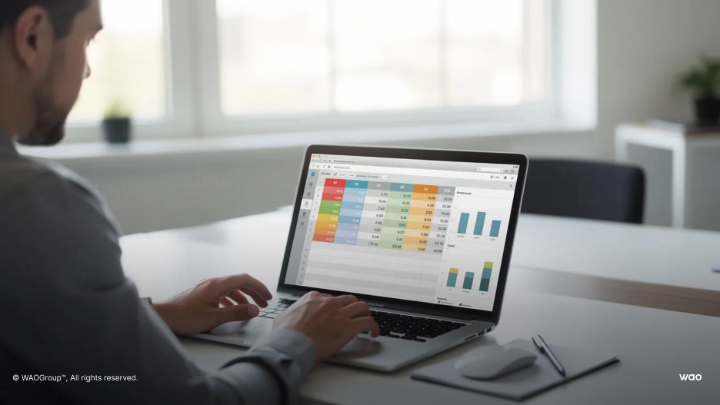
When you build interactive dashboards, structure matters as much as data sources. Odoo dashboards can be customized to display key performance indicators (KPIs) in real-time, allowing users to monitor business performance at a glance. User-specific settings and preferences, such as access control and personalized layouts, further enhance dashboard functionality and ensure each user sees the most relevant data. Here’s how to configure each type for maximum clarity.
Sales Order–Based Dashboard Structure
For commercial performance tracking, configure your dashboard with:
KPI Cards (top row)
- Total Sales (sum of confirmed order values).
- Average Order Value.
- Sales Margin %.
- Order Count.
Charts
- Bar chart by month based on order_date field.
- Pie chart showing revenue by product category.
- Stacked bar comparing salesperson performance.
For seamless business analytics and data visualizations integrated with your ERP, consider Odoo Custom API Integration | WAO Group.
Tables
- Top 10 customers by order value.
- Recent orders list with status.
All data driven from sale.order and sale.order.line records using form views and filters appropriate to your business.
Invoice-Based Dashboard Structure
For financial performance and accounting alignment, configure:
KPI Cards (top row)
- Recognised Revenue (posted invoice total).
- Outstanding AR (unpaid invoice balance).
- Overdue Invoices (past due date).
- Average Days to Payment.
Charts
- Bar chart by month based on invoice_date.
- Aging buckets (0-30, 31-60, 61-90, 90+ days).
Tables
- Open invoices by customer.
- Payment status by account.
All data driven from account.move and account.move.line where move type is customer invoice.
The Hybrid Approach
Many organisations benefit from maintaining both views, clearly separated:
- Tab 1: Commercial View – Sales Order data answering “What did we sell?”
- Tab 2: Financial View – Invoice data answering “What did we bill and collect?”
This approach requires defining clear record rules about which view answers which question, and training users to select the appropriate tab for their decision making needs.
If you choose invoice-based dashboards, provide a sample month (like June 2026) in a simple Google Sheet showing expected totals and groupings. This validates feasibility before development begins.
Handling Partial Invoicing, POS, and Margin Calculations
Three scenarios consistently cause confusion when comparing dashboards to accounting reports. Understanding these helps set realistic expectations.
Partial Invoicing Impacts
A single Sales Order can generate multiple invoices across different periods:
- Advance invoice: 30% billed at order confirmation.
- Progress invoice: 50% billed mid-project.
- Final invoice: 20% billed on completion.
Each invoice appears in its respective period’s invoice dashboard. The full order value appears once in the Sales Order dashboard at confirmation.
Real-world impact: A December sales dashboard might show $100,000 in orders, while invoice dashboards show only $30,000 in December (advances), $50,000 in February (progress), and $20,000 in April (finals). All figures are correct—they’re just measuring different things.
POS Journal Entry Limitations
When POS is configured with bulk journal entries:
- Product category breakdowns are not visible in accounting data.
- Salesperson assignments are not captured in journal lines.
- Quantity details are aggregated rather than itemized.
Real-world impact: An invoice-based dashboard will show “POS Sales: $5,000” for a day, but cannot break this down by product, category, or cashier without custom integration pulling from POS order records.
Best Practices for Odoo Reporting and Version Choices
Implementing effective reporting requires decisions that extend beyond dashboard design.
Dashboards in Odoo are accessible on various devices, enabling remote monitoring and decision-making.
When planning your Odoo reporting and dashboards, it is a best practice to use a test environment—a separate instance of Odoo dedicated to testing—so you can safely experiment and validate changes before deploying them live.
Version Recommendations
Stay on or upgrade to recent Odoo versions (17, 18, or 19) to benefit from:
Improved dashboard performance and visualization options.
Native Spreadsheet integration replacing external Excel dependencies.
Enhanced pivot table functionality with more flexible groupings.
Better mobile responsiveness for real-time view access on any device.
Define Your Reporting Rules
Document and communicate clear policies:
Decision Point | Options | Impact |
Primary date field | Order date vs. Invoice date | Which month “owns” the transaction |
Revenue definition | Confirmed orders vs. Posted invoices | What counts as “sales” in reports |
Margin basis | Order-time cost vs. Delivery cost | Accuracy vs. timeliness trade-off |
POS treatment | Order-level vs. Journal-level | Detail availability in dashboards |
Once defined, ensure all dashboards follow these rules consistently. Train users on which dashboard answers which question. |
Separate Dashboards by Purpose
Create distinct menu items or dashboard pages for:
Sales KPIs – For sales managers tracking commercial performance.
Invoice/Accounting KPIs – For finance teams tracking revenue and receivables.
POS KPIs – For retail managers tracking store performance.
Inventory KPIs – For operations tracking stock and fulfilment.
This separation prevents confusion and builds confidence in the numbers across different departments.
Integration Options
For businesses needing to blend Odoo with external data sources, APIs enable integration with:
External BI tools (Power BI, Tableau, Amazon QuickSight). Companies can install and configure a dedicated Power BI Template App to connect directly to Odoo data sources, enabling advanced analytics and interactive dashboards for financial analysis. Within the Power BI report, a clickable link can guide users through the data connection process in a user-friendly manner.
E-commerce platforms (Shopify, WooCommerce).
External accounting systems (Xero, QuickBooks).
Analytics platforms (Google Analytics).
However, most SMEs can meet their reporting needs entirely within Odoo’s native tools without external integration.

Next Steps: Confirming Your Reporting Model
The choice between Sales Order and Invoice-based dashboards comes down to one question: what business decisions are you trying to support?
Make Your Choice Explicit
Please confirm whether you’d like your main dashboards based on:
Option 1: Confirmed Sales Orders (Sales-based reporting)
- Shows commercial commitments by order date.
- Includes full product, salesperson, and margin detail.
- Does not reconcile directly to P&L.
- Uses existing custom margin logic with minimal additional development.
Option 2: Confirmed Invoices (Invoice-based reporting)
- Shows recognised revenue by invoice date.
- Aligns with accounting and P&L figures.
- Requires additional development for POS, margins, and partial invoicing.
- May have gaps in dimensional detail for bulk-posted transactions.
If You Choose Invoice-Based Dashboards
Share a concrete sample report—one week or month (such as July 2026)—in a simple Google Sheet showing:
- Expected column headers (date, customer, product, amount, etc.).
- How totals should be grouped (by week, by salesperson, by category).
- Which date field should drive period assignment (invoice date vs. posting date)?
This sample validates feasibility, defines necessary customisation, and ensures the automated dashboards match your expectations before development begins.
If You Stay with Sales Order-Based Dashboards
The existing custom margin logic and dimensional analysis can be leveraged with minimal additional development. The dashboards will continue to reflect commercial performance based on order confirmation dates.
Understanding the distinction between Sales Order and Invoice reporting isn’t about finding the “right” answer—it’s about matching your dashboards to your business questions. Sales dashboards tell you what you’ve sold; Invoice dashboards tell you what you’ve billed and what you’re owed.
Many successful businesses run both, clearly labelled and used by different teams for different purposes. The key is making an explicit choice, documenting it, and training your people to use the appropriate view for their decision-making.
Ready to move forward? Contact your implementation team to schedule a dashboard review session. Bring your questions about specific transactions that seem to show different values across reports—those examples will clarify exactly how your data flows through the system and confirm which reporting model serves your business best.
GET STARTED
Ready to talk to an Odoo expert?
Book a free consultation ➔
The information and tips shared on this blog are meant to be used as learning and personal development tools as you launch, run and grow your business. While a good place to start, these articles should not take the place of personalised advice from professionals. As our lawyers would say: “All content on WAO’s blog is intended for informational purposes only. It should not be considered legal or financial advice.” Additionally, WAO is the legal copyright holder of all materials on the blog, and others cannot re-use or publish it without our written consent.